
How to Remove Metadata from PDF Files
Use the tool below to remove PDF metadata in your browser.
or drag and drop files anywhere here
How to Remove PDF Metadata in 3 Steps
Follow these three steps. Each image shows only the control used in that step.
Step 1
Upload the PDF file
Drop the PDF file into the upload area or choose it from your device.
Open the tool
Step 2
Review the metadata
Check the detected PDF metadata and select the fields you want to remove.
Open the tool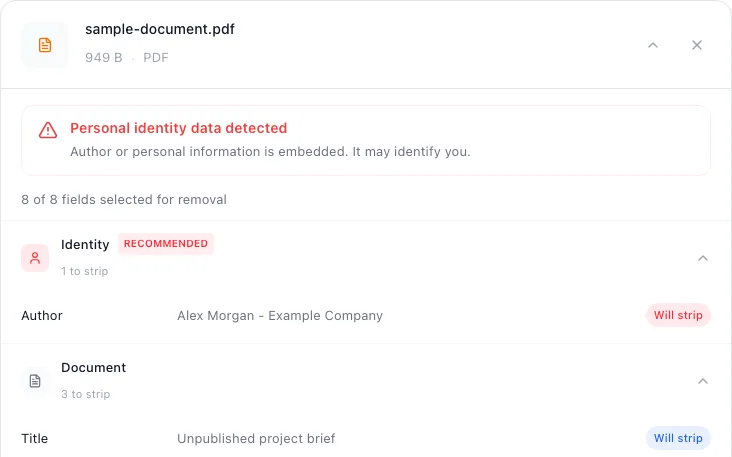
Step 3
Remove and download
Start the cleaner and download the new copy.
Open the tool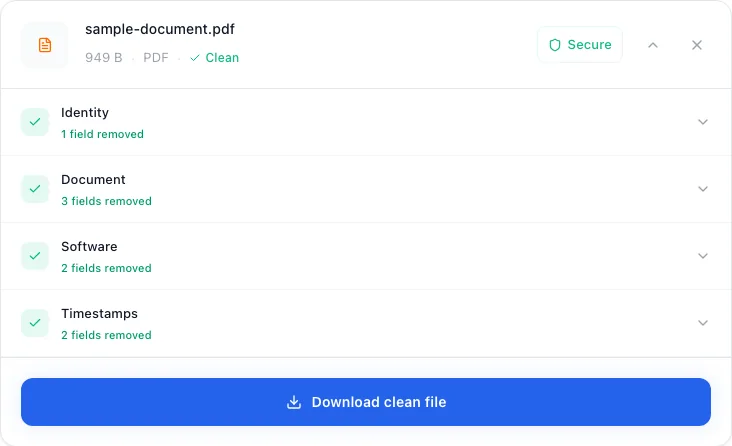


PDF Metadata this tool can remove
Check the highest priority fields first.
- Author or employee account nameRemove first
- Title, subject, and internal keywordsHigh priority
- Creator and producer softwareHigh priority
- Creation and modification datesReview
PDF Metadata questions
Short answers about verification, file quality, and format limits.
Metadata removal is not PDF redaction
If a PDF contains a name in visible text, an image, a comment, an attachment, or text underneath a black rectangle, metadata cleaning will not make that information safe. Redaction changes or removes page content; sanitization reviews active and hidden structures; document-property cleaning handles descriptive fields. Treat them as separate checks.
Adobe's guidance on removing sensitive PDF content separates redaction from finding and removing hidden information. For a high-risk document, follow an approved redaction/sanitization process and validate the final export independently.
How to verify the cleaned PDF
- Reopen the cleaned copy in metapeel and compare the detected standard properties with the original.
- Open Document Properties in a desktop PDF reader and check title, author, subject, keywords, creator, producer, and dates.
- Use a second metadata parser for sensitive sharing; different tools can expose different structures.
- Review annotations, attachments, forms, layers, signatures, and redaction separately.
- Open every page and confirm that the saved copy still renders and behaves as expected.
Verification should be scoped. “the standard author and date properties are cleared” is testable. “Nothing hidden remains anywhere in the PDF” requires a much broader examination.
What if the PDF came from Word, Excel, or PowerPoint?
Clean the editable source file separately before sharing it. OOXML and ODF documents have their own package metadata, comments, tracked changes, hidden sheets, and embedded content. metapeel's document tool clears supported core/application properties, but it does not replace Microsoft's Document Inspector or an equivalent application-native review.
For the distinction across all file types, return to the file metadata field guide. If the source includes photos, inspect those separately with the photo metadata workflow before placing them into a document.
Written and maintained by
metapeel Editorial TeamThe team that documents metapeel's browser-based metadata inspection and cleaning behavior against the current implementation and primary format references.