
How to Remove Metadata from Video Files
Use the tool below to remove video metadata in your browser.
or drag and drop files anywhere here
How to Remove Video Metadata in 3 Steps
Follow these three steps. Each image shows only the control used in that step.
Step 1
Upload the video
Drop the video into the upload area or choose it from your device.
Open the tool
Step 2
Review the metadata
Check the detected video metadata and select the fields you want to remove.
Open the tool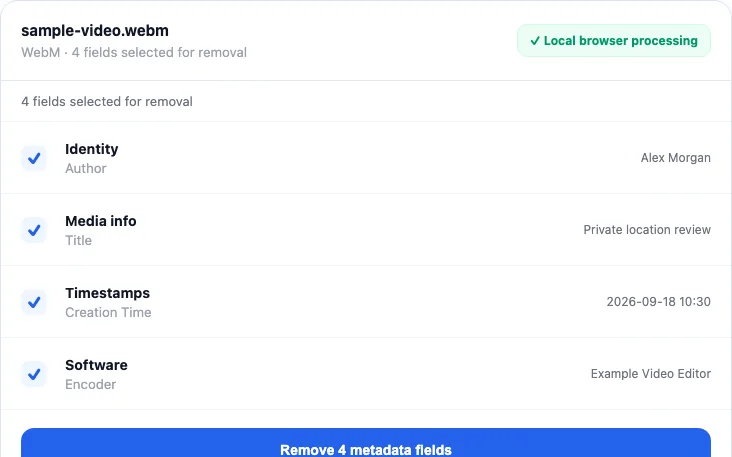
Step 3
Remove and download
Start the cleaner and download the new copy.
Open the tool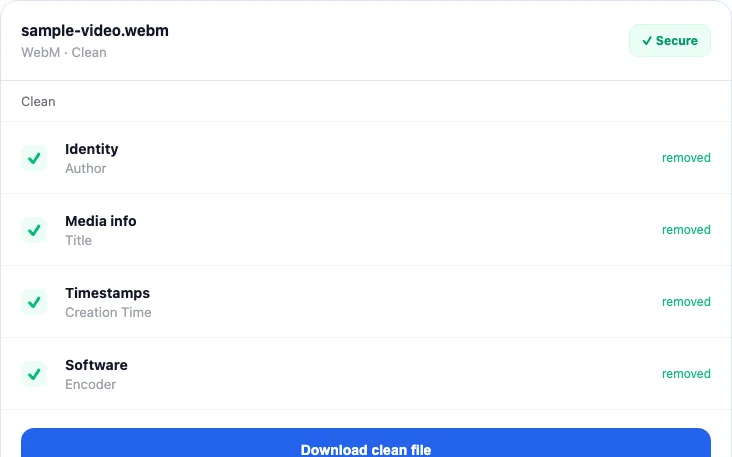


Video Metadata this tool can remove
Check the highest priority fields first.
- Creation time and possible locationRemove first
- Phone, camera, or encoder modelHigh priority
- Title, author, and commentsHigh priority
- Container and software identifiersReview
Video Metadata questions
Short answers about verification, file quality, and format limits.
What “video metadata” actually includes
A video file is usually a container holding one or more encoded video, audio, subtitle, image, or data streams. The container can carry global tags such as title, author, comment, creation time, location, device, or software. Individual streams also have technical descriptors such as codec, resolution, frame rate, sample rate, language, duration, and bitrate.
The technical descriptors are normally required to play or identify the streams. Removing them all would not produce a useful file. The privacy review should focus on descriptive tags and identifiers rather than expecting the codec or resolution to disappear.
Does remuxing change video quality?
With stream copy, FFmpeg copies the encoded packets rather than decoding and compressing the picture and sound again. That avoids transcoding loss. The container itself is rebuilt, so byte-for-byte file identity, signatures, chapter behavior, attachments, unusual stream layouts, and player compatibility are not guaranteed to remain unchanged.
Container support is also codec-dependent. A filename extension accepted by the picker does not guarantee that every unusual codec or malformed file can be remuxed back into that container. The FFmpeg formats documentation is the source of truth for demuxer and muxer behavior; the browser build can still impose memory and compatibility limits.
What stays local, and why large videos take longer
The file is written into the browser-hosted FFmpeg virtual file system and processed on the user's device. metapeel does not upload its contents for server-side conversion. FFmpeg code and its WebAssembly core are downloaded on demand, which is a resource request, not a file upload.
Browser processing needs memory for the input, virtual file, and output. Large or complex videos can exhaust memory on a phone or low-memory computer. Close unnecessary tabs, keep the original file, and test with a short non-sensitive sample if you are unsure whether a container/codec combination will work.
How to verify the cleaned video
- Play the entire cleaned copy, checking video, audio, subtitles, orientation, chapters, and seek behavior that matter to you.
- Load the output into metapeel again and compare the descriptive fields with the original.
- For an independent inspection, run
ffprobe -show_format -show_streams cleaned.mp4. The ffprobe documentation explains how format and stream information is reported. - Expect codec and other technical stream descriptors to remain. Investigate original GPS, make/model, author, comment, creation-time, or software values if they still appear.
Audio uses the same local remuxing engine but different tagging conventions. See the audio metadata guide, or return to the cross-format metadata map for the wider picture.
Written and maintained by
metapeel Editorial TeamThe team that documents metapeel's browser-based metadata inspection and cleaning behavior against the current implementation and primary format references.